Find Care Providers & Drugs
Frequently Asked Questions
Don’t speak fluent healthcare? We can translate. Find answers to frequently asked questions here.
FAQs Members
I’m trying to set up multi-factor authentication for my Online Member Services account. How do I whitelist an email?
To make sure you receive emails from us, add our email address ([email protected]) to your safe sender list and check your spam or junk folder. This helps prevent important messages from being filtered out and ensure future emails are delivered to your inbox.
Below are instructions on how to whitelist our email for a few common email clients:
Gmail
Option 1: Mark a Message as “Not Spam”
- Open Gmail.
- Click Spam in the left menu. (You may need to select More to see it.)
- Open the email from us.
- Click Report not spam at the top of the message.
Option 2: Add the Sender to Your Contacts
- Open an email from us.
- Hover over the sender’s name.
- Click Add to Contacts.
Outlook (Microsoft 365, Outlook.com, Hotmail, Live)
Outlook on the Web
- Select Settings (gear icon).
- Choose Mail > Junk Email.
- Under Safe senders and domains, select Add.
- Enter the sender’s email address.
- Select Save.
Outlook Desktop App
- Open Outlook.
- Select Home > Junk > Junk Email Options.
- Select the Safe Senders tab.
- Click Add.
- Enter the sender’s email address.
- Click OK.
Yahoo Mail
- Open Yahoo Mail.
- Click the Contacts icon.
- Select Add a New Contact.
- Enter the sender’s email address and save.
- If you find an email from us in the Spam folder, open it and select Not Spam.
Apple Mail (iPhone, iPad, or Mac)
- Open an email from us.
- Tap or click the sender’s email address.
- Select Add to Contacts.
- If the email is in the Junk folder, move it to your Inbox.
AOL Mail
- Open the email from us.
- Click the sender’s name or email address.
- Select Add Contact.
- If the email was delivered to Spam, mark it as Not Spam.
Still Not Receiving Emails?
If you’ve followed the steps above and still don’t see our emails:
- Check your Spam, Junk, Promotions, or Clutter folders.
- Search your mailbox for the sender’s email address.
- Make sure your mailbox isn’t full.
- Contact UHA Customer Services at (808) 532-4000, 8AM to 5PM, Monday through Friday or online.
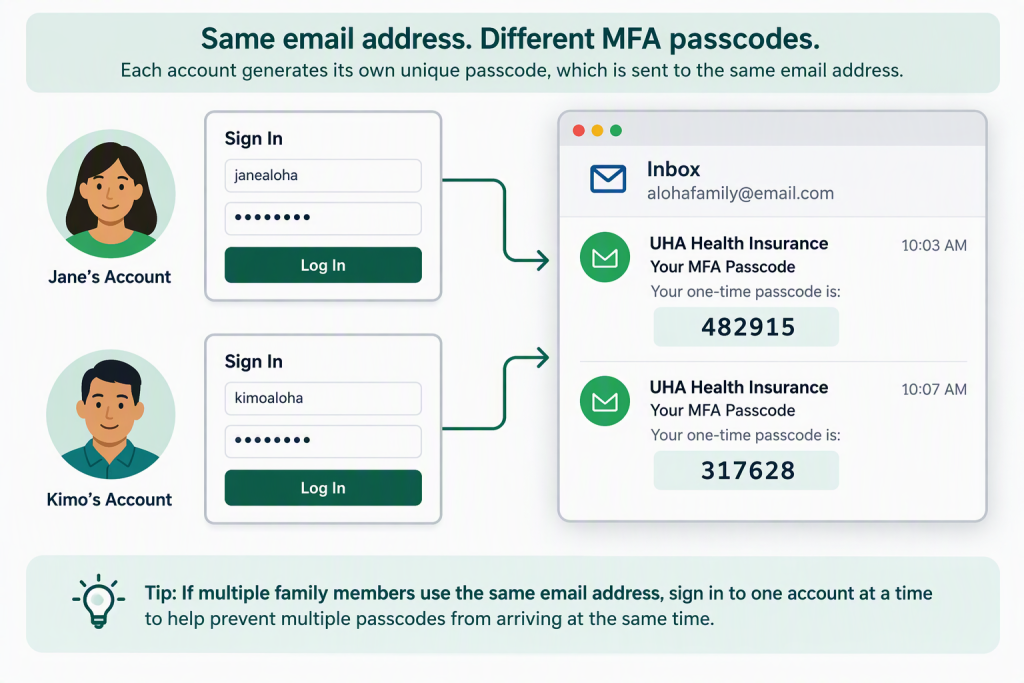
Why am I receiving multiple MFA passcodes at the same email address?
If you and your family members use the same email address for multiple Online Member Services accounts, each account will send its own MFA passcode to that email address when someone attempts to sign in.
To avoid receiving multiple passcodes at the same time:
- Sign in to one account at a time.
- Enter the MFA passcode sent to your email before attempting to sign in to another account.
- Do not navigate away from the sign-in page while retrieving and entering your passcode.
You can continue using the same email address for multiple accounts. Signing in one person at a time will help prevent confusion about which passcode belongs to each sign-in attempt.